

Bulk downloading files is possible if you have at least two items selected in the Files tool. Users can navigate between the Old and New Files views, depending on their preference. Below are steps on how to bulk download files using the two views.
New Files UI
- In your course, click Files from the lefthand course navigation menu.
- Select the checkbox next to the folders and/or files you want to bulk download.
- All files: On your keyboard, hold down the command (Mac) or control (PC) key and A (to select ALL files and folders) or click on the checkbox name to the Name column.
- Specific files: select the checkbox next to each folder and file you wish to download.
- All files: On your keyboard, hold down the command (Mac) or control (PC) key and A (to select ALL files and folders) or click on the checkbox name to the Name column.
3. Once at least one item is selected, the actions toolbar will become enabled. Select the bulk action you wish to perform (e.g., bulk download, bulk delete, etc.)
Old Files UI
- In your course, click Files from the lefthand course navigation menu.
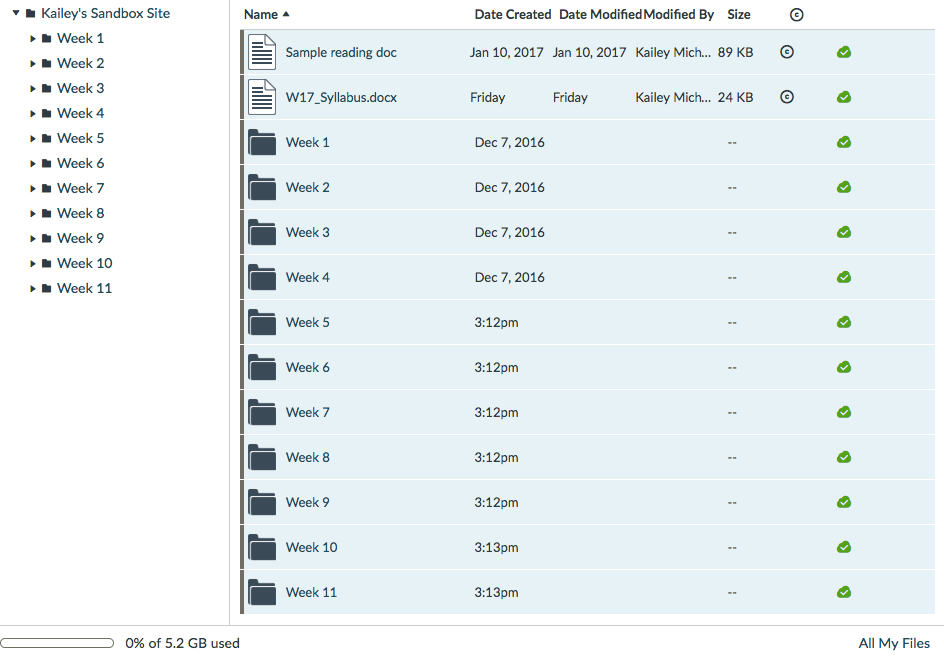
- Select the files you want to bulk download.
- All files: On your keyboard, hold down the command (Mac) or control (PC) key and A (to select ALL files and folders)
- Specific files: Hold down the command (Mac) or control (PC) key and click the blank space next to the files/folders name(s) you wish to download. Avoid clicking on the file names, as that will open up a preview of the file.
3. A toolbar for bulk functionality will appear at the top of the page. Click on the third option (downward facing arrow) to bulk download the content as a zip file.